
What Ollama does
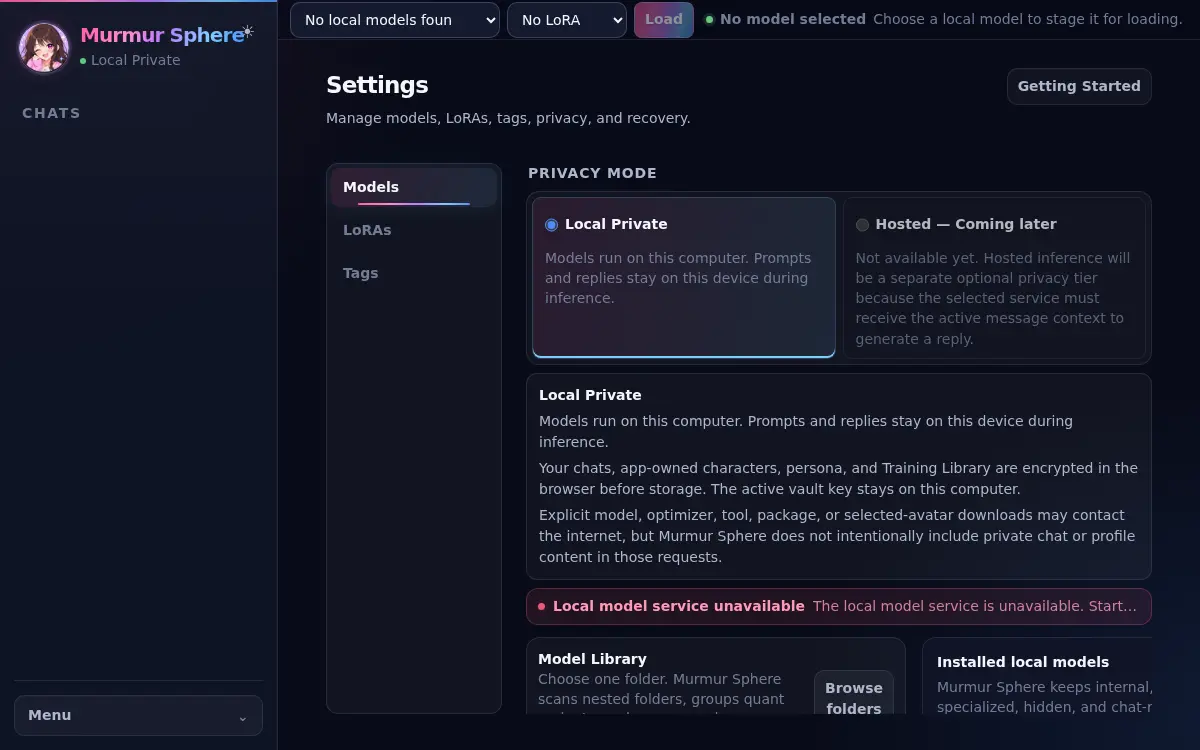
Ollama runs compatible language models on your computer and makes the selected model available to Murmur Sphere. The app does not silently send a failed local request to a hosted AI service.
Guide
Install Ollama, choose a local AI model for Murmur Sphere, and confirm it is ready for private character chat.
How it fits together
Murmur Sphere is the character-chat workspace. Ollama is the separate local service that runs the AI model. Keeping those roles clear makes setup easier and helps you understand which downloads, storage, and computer resources each part uses.
Ollama runs compatible language models on your computer and makes the selected model available to Murmur Sphere. The app does not silently send a failed local request to a hosted AI service.
Model downloads can be large and model speed depends on your hardware. Start with a recommended option that fits the storage and memory information shown in the app, then wait for the status to say Ready before chatting.
Downloading Ollama or a model uses the internet. Once the model is installed and ready, character prompts and replies stay between Murmur Sphere and the local Ollama service on your computer.
Steps
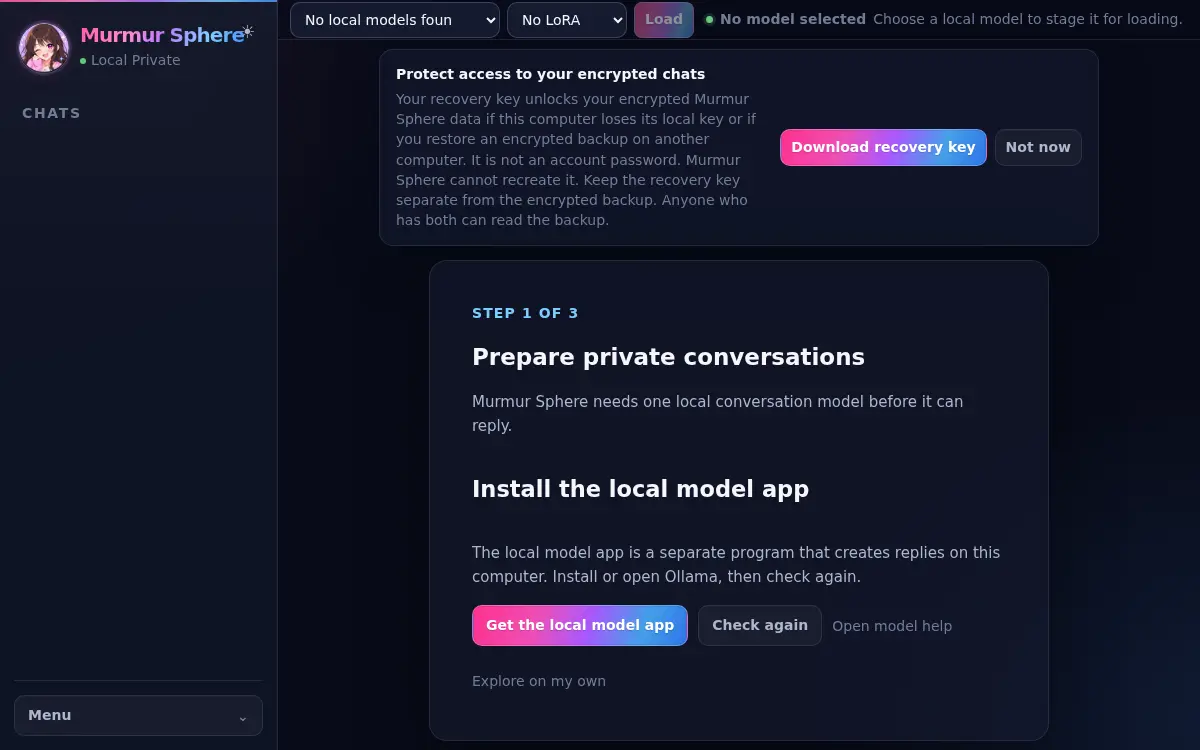
Install or open Ollama, the separate program that runs AI models on your computer.
Review models already installed, or choose one of the recommended options and check how much space it needs.
Start the model download you want and wait for it to finish.
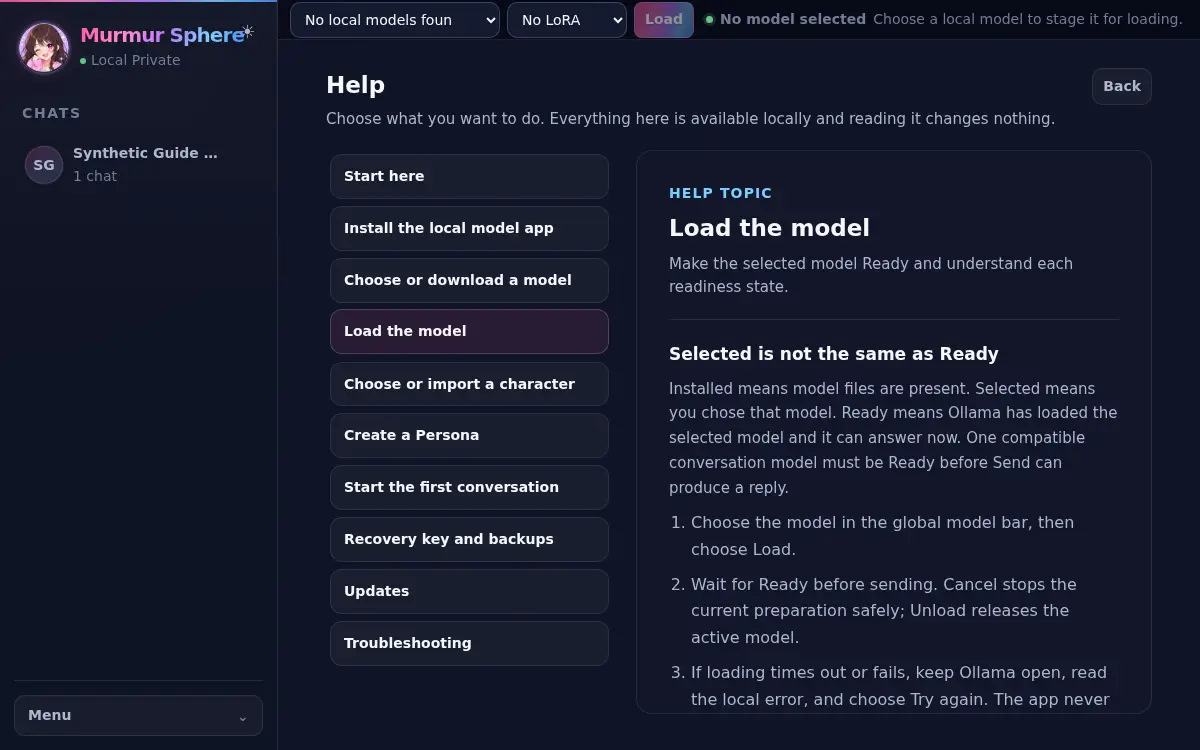
Select the model, choose Load, and wait for the model status at the top to say Ready.
Related screens
More help