
Practical guide
Train a LoRA from a saved chat
Use a saved conversation to train a local text-model adapter, then find the completed LoRA in the model library.
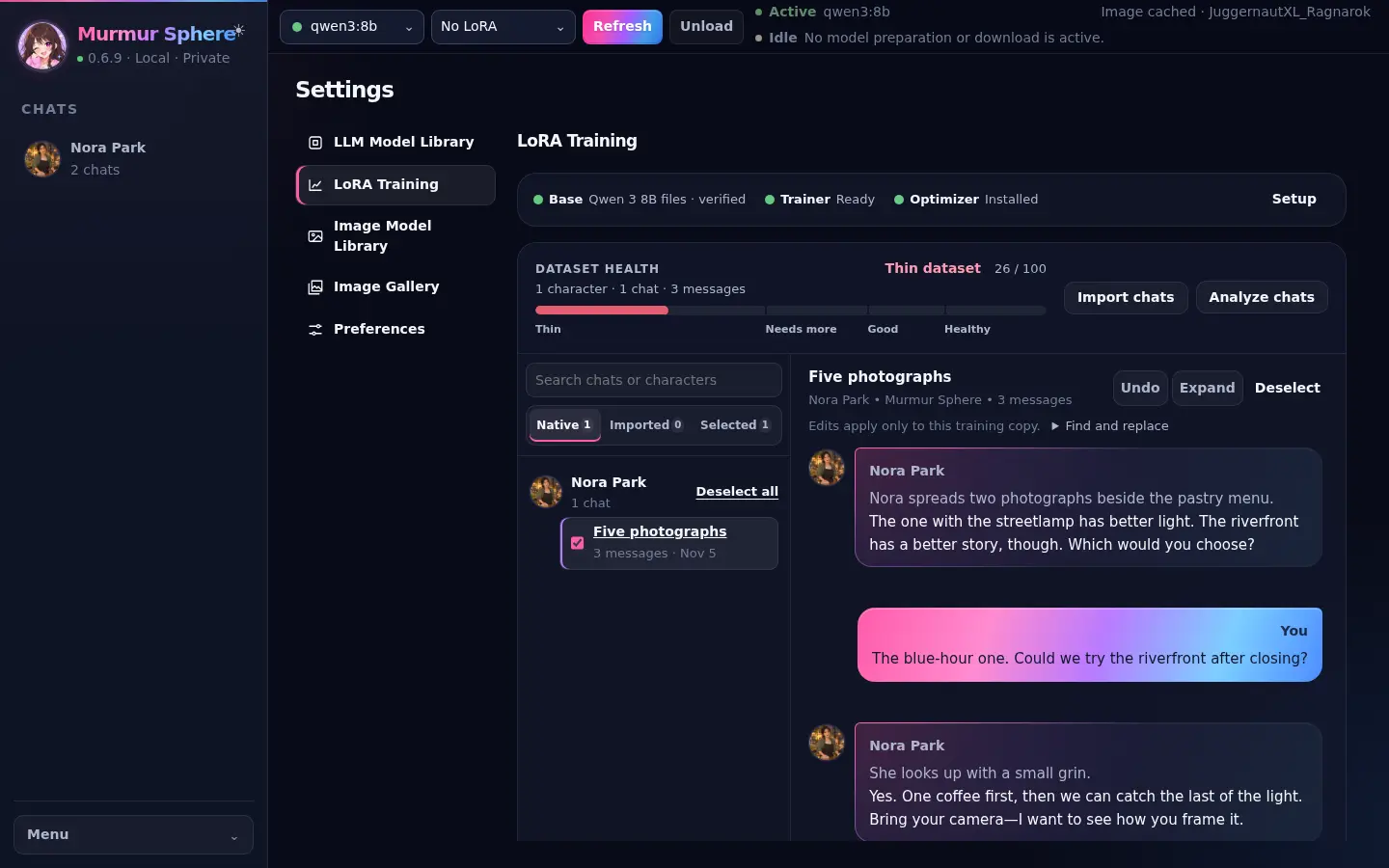
Steps
Follow in order.
- 1
Open Settings → LLM Model Library. On your model’s row choose + LoRA → Train your own. Training needs the exact supported original model weights, configuration and tokenizer, a compatible NVIDIA GPU, and a ready local trainer and optimizer. Check the download size and free disk space before getting these separate files.
- 2
Open Training files → Get them if you need the original files. In LoRA Training → Setup, select your base and choose Verify training base. Complete the trainer and optimizer setup shown there.
- 3
Find a conversation under Native, preview it and add it to the dataset. Open Selected and review its training copy. You can edit that copy while keeping the original chat.
- 4
Enter a name such as After Hours and choose Train LoRA. Review the confirmation. Training uses your GPU and pauses chat and picture work. Watch the progress until the app reports completion.
- 5
Choose Prepare in LLM Model Library to find the saved adapter. Follow its preparation steps for the matching chat model. Once ready, choose Use for chat.
More help