
Murmur Sphere
The free character-chat workspace. It manages characters, optional Persona context, and conversations. It does not require an account.
Windows setup guide
You need a Windows PC, Murmur Sphere, Ollama, and a compatible AI model. Here’s what each part does, what stays on your computer, and where the internet is still involved.
See how it fits togetherHow it fits together
These are separate downloads. You choose the model and run it on your own PC.
The free character-chat workspace. It manages characters, optional Persona context, and conversations. It does not require an account.
The separate local service that runs a compatible AI model. Keep it open when you want to chat.
The model generates replies. Models vary in download size, memory use, and speed; choose one that fits your computer rather than assuming the biggest is best.
Before downloading
First conversation
Install Murmur Sphere from the official Download page and create a local profile.
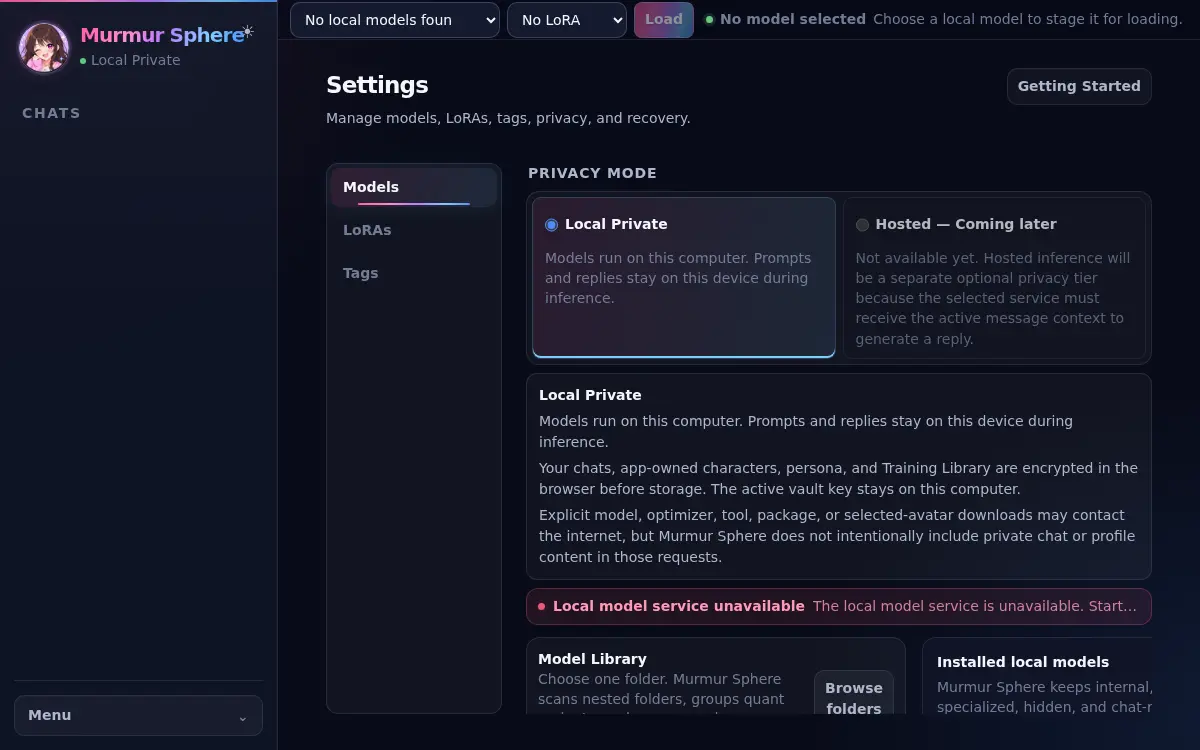
Install and open Ollama. In Murmur Sphere, choose a compatible model; download it if needed, then select Load.
Wait for the model status to say Ready. Selecting a model is not the same as loading it.
Create a character or import a supported card, review its contents, and send a message. A Persona is optional.
The first-chat walkthrough and character-card guide have the detailed in-app steps.
Privacy, plainly
Character prompts and replies go to the local model through Ollama. Murmur Sphere does not silently switch to a hosted AI. Current saved profiles are local plaintext with integrity checks, so protect your Windows account and device; local does not mean encrypted at rest.
Website visits use Cloudflare Web Analytics. Chosen downloads, a small startup release check, optional public images, email, and creator support can use the internet. The app does not send your chats to website analytics. Read the privacy details for the full boundary.
If something stalls
This is an early alpha. The known issues page has the current limits.
Ready when you are
Local chat gives you control over the model and your files, with the tradeoff of installing and maintaining the parts yourself.